Here's a claim that's going to sound small until you actually try it: the single most useful productivity upgrade on your phone and laptop right now isn't an app, a subscription, or a new gadget. It's turning on the clipboard history that's probably already sitting dormant in your operating system.
Most people copy one thing, paste it once, and move on. Then they copy something else and the first thing is gone forever. If that's you, you're re-typing addresses, re-copying phone numbers, and re-finding the same paragraph three separate times in a single afternoon. It's a tiny tax, paid constantly, and almost nobody notices they're paying it.
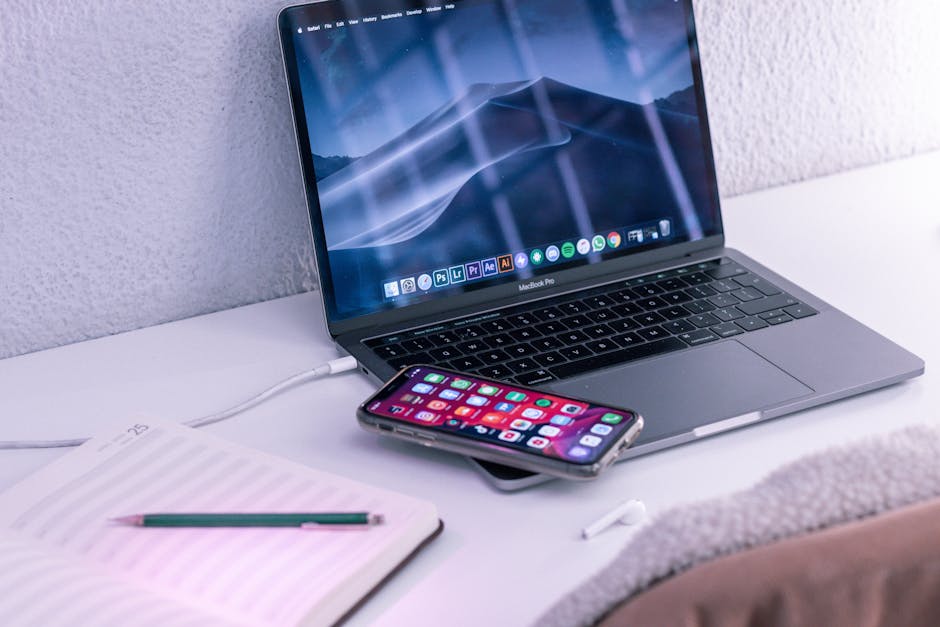
Photo by Callum Hilton on Pexels
What a Clipboard Manager Actually Does
A regular clipboard holds one item. Copy a second thing, and the first one's gone. A clipboard manager keeps a running history — the last 10, 25, sometimes hundreds of things you've copied — searchable and ready to paste again.
That's it. No AI, no sync magic required, no learning curve beyond one new keyboard shortcut. And that simplicity is exactly why it works: you don't have to change how you work, you just stop losing things you already copied.
Where it gets genuinely useful is compound copying — pulling five different pieces of information from five different places and assembling them somewhere else. Filling out a form with someone else's shipping address, order number, and confirmation code. Pulling three quotes out of a long document to drop into an email. Grabbing a tracking number, then a delivery date, then a return-window deadline, all before you've actually written anything.
The Built-In Option You Already Have
You don't need to install anything to try this.
- Windows: Press `Windows key + V`. If it's your first time, it'll ask you to turn on clipboard history. Once it's on, that same shortcut pops up a small panel of everything you've recently copied, and you can pin the ones you use constantly — a signature block, a common reply, whatever.
- macOS: There's no built-in clipboard history the way Windows has one, which genuinely surprised me the first time I went looking for it. You'll need a small third-party app — Maccy is free and does the job with zero fuss, Paste is a paid option with more polish.
- iPhone/iPad: There's no system-wide clipboard history either, but Universal Clipboard lets you copy on your phone and paste on your Mac (or the reverse) within a few seconds, as long as both are signed into the same Apple ID and have Bluetooth/Wi-Fi on.
- Android: Gboard, the default keyboard on most Android phones, has a clipboard tool built in — tap the clipboard icon above the keyboard to see recent items.
None of these cost anything beyond a few minutes of setup, and that's the whole pitch. This isn't a $60-a-year subscription app. It's a setting.
A Realistic Scenario
Say you're booking a rental car and the confirmation email has your reservation number, the pickup address, and a customer service line you'll probably need to call anyway. Without clipboard history, you copy the reservation number, paste it into a note, go back for the address, paste that, go back a third time for the phone number. Three trips back to the same email, and if you fat-finger the paste order even once, you're hunting for what got overwritten.
With clipboard history on, you copy all three in sequence — number, address, phone — then open your note and paste them in reverse order from the history panel. One trip. It sounds like a minor difference on paper, and individually it is. But it's not a once-a-week task. It's copying a code from a two-factor text, an address from a group chat, a link a coworker sent you — that pattern repeats dozens of times a day for most people, and each repetition without history costs you a little backtracking.
Where It Doesn't Help — Be Honest About This

Photo by www.kaboompics.com on Pexels
I've written before about how the two-minute rule can make your day worse by turning "quick tasks" into constant interruptions, and clipboard managers have a similar failure mode if you let them: they're not a substitute for actually organizing information you use often.
If you're pasting the same shipping address every week, that belongs in a saved template or a notes app, not buried in clipboard history where it'll eventually scroll out of view. Clipboard managers are for short-term, in-the-moment juggling — the stuff you need for the next ten minutes, not the stuff you need every month. Treat it as a scratch pad, not a filing cabinet, and it stays useful instead of turning into another cluttered list you have to dig through.
Also worth knowing: clipboard history captures everything, including passwords you copy from a password manager and sensitive account numbers. Most tools let you clear history manually or set it to auto-clear after a set time — worth doing if you're copying anything you wouldn't want sitting around.
Setting It Up Without Overthinking It
You genuinely don't need to research this for an hour. The fastest path:
- On Windows, turn on `Win + V` today — it's already there, you're just flipping a switch.
- On Mac, install Maccy, give it a keyboard shortcut, and ignore the rest of its settings.
- On phone, check whether your keyboard app already has clipboard history (Gboard does) before installing anything new.
That's genuinely the whole setup. No account creation, no syncing services to configure, no settings menu to get lost in.
FAQ
Does a clipboard manager slow down my phone or laptop?
No — these tools store small snippets of text (and sometimes images), and even a history of a few hundred items uses a trivial amount of storage. You won't notice any performance difference.
Is it safe to keep clipboard history if I copy passwords or account numbers?
It's worth being deliberate here. Most clipboard managers let you exclude password manager apps from history or set items to expire after a few minutes, and it's worth turning that on if you ever copy sensitive numbers.
Can I sync clipboard history between my phone and laptop?
Native Universal Clipboard between an iPhone and Mac gets you close, letting you copy on one and paste on the other within a short window. Full cross-platform, always-on sync between, say, an Android phone and a Windows laptop, generally requires a third-party app on both ends.
The Small Fix That Adds Up
None of this is flashy, and that's sort of the point. It's the same lesson I keep coming back to with this stuff: the boring built-in feature usually beats the app you'd have to go find, install, and remember to open. Clipboard history isn't going to change your life. But it'll quietly remove one small, repeated annoyance from your day, and that's worth more than most of the shinier tools I've tested this year.
Comments
Post a Comment