For months I had a dumb little routine: find a link on my phone, email it to myself, switch to my laptop, open the email, click the link. Or worse, type out a six-digit code by hand because I didn't want to deal with the email step. I never thought of it as a problem, exactly — just friction I'd accepted, the way you accept a squeaky door hinge. Then I turned on cross-device clipboard syncing, and I noticed within a day how much of my "work" had actually just been retyping things I'd already typed once on a different screen.
This isn't a new feature. Apple's had Universal Clipboard since 2016, Windows has had Phone Link's clipboard sync for a while, and Android users have KDE Connect or Google's own cross-device copy-paste if they're in the right ecosystem. What's new is that I finally sat down and set it up properly, and it turned out to be a bigger deal than half the apps I've reviewed on this blog.
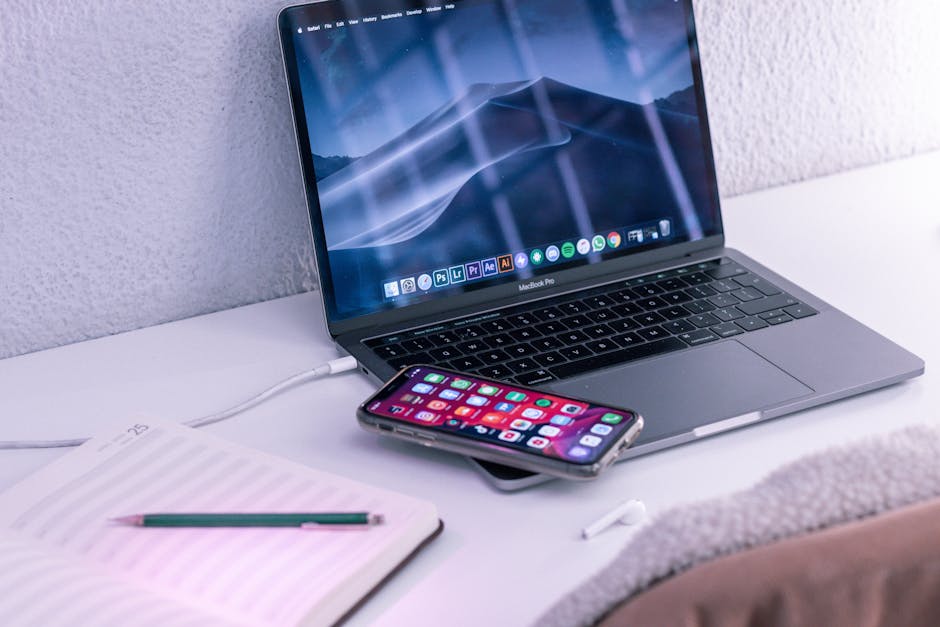
Photo by Callum Hilton on Pexels
The problem nobody names because it feels too small to complain about
Copy-pasting between your phone and laptop isn't a task you'd ever put on a to-do list. It's a background tax — thirty seconds here, a minute there, dozens of times a week. A verification code from a text message. A restaurant address you found on your phone that you now need in Google Maps on your laptop. A paragraph of notes you jotted in your Notes app on the train that you want to paste into an email once you're at your desk.
Individually, none of it registers as wasted time. Add it up over a week and it's a genuinely irritating chunk of your day spent as a human relay between two devices that are both, in theory, "yours."
How the actual syncing works, by platform
The setup differs depending on what you're running, but the concept is the same everywhere: copy on one device, paste on the other, no cable, no email-to-self.
If you're all-Apple (iPhone + Mac): Universal Clipboard is built in and usually just works if both devices are signed into the same Apple ID with Bluetooth and Wi-Fi on. Copy a photo on your iPhone, paste it into Pages on your Mac within a minute or two — it does expire after a short window, so don't copy something and wander off for an hour.
If you're Windows + Android: Phone Link (formerly Your Phone) handles this now, including clipboard sync, once you link the two devices through the app. It also mirrors notifications and lets you send texts from your laptop, which is arguably the bigger draw, but the clipboard piece is the one I actually use daily.
If you're mixing ecosystems (iPhone + Windows, or Android + Mac): This is where it gets messier, and honestly, where most people give up and go back to emailing themselves things. KDE Connect works well if you're on Linux or willing to install it alongside a companion Android app. There are also smaller third-party apps — Clipt, Universal Copy Paste — that do the job with varying reliability. None of them are as seamless as staying inside one company's ecosystem, and that's worth being honest about upfront rather than pretending it's a five-minute fix for everyone.
A realistic example of where this saves time
Say you're planning a trip and you spend your commute browsing hotel options on your phone. You find one you like, copy the address, and by the time you sit down at your laptop, it's already sitting in your clipboard — paste it straight into a spreadsheet or a maps tab, no searching your browser history to find it again.
Or the more mundane version: a two-factor code shows up as a text while you're mid-login on your laptop. Instead of squinting at your phone screen and typing six digits (getting one wrong, having to request a new code), you copy it on your phone and paste it directly. It sounds trivial written out like this. It stops feeling trivial once it's just how your devices behave.
Where this breaks down, because it's not flawless

Photo by Plann on Pexels
I've written before about how the boring, well-integrated tool usually beats the flashy new one, and clipboard sync is a good example of "well-integrated" having real limits. A few things trip people up:
- It's not instant across ecosystems. Apple-to-Apple is fast. Cross-platform apps often have a noticeable lag, sometimes 10-20 seconds, which is enough to make you double-check it actually worked.
- It's a privacy trade-off you should think about once. Anything you copy — passwords, financial info, private messages — is briefly synced across your devices via the cloud or local network. For most people this is fine, but if you're on a shared or work-managed device, it's worth knowing this is happening rather than discovering it later.
- Battery and background app permissions matter. On Android especially, these sync apps need to run in the background, and overly aggressive battery optimization settings will quietly kill the connection without telling you. If it stops working after a phone update, that's usually why.
My honest take: this beats most "productivity" apps I've tested
I'll say the unpopular part directly: most dedicated productivity apps overpromise and underdeliver, and I've covered a few on this blog that quietly died around week three for exactly that reason. Clipboard sync isn't flashy, it doesn't have a dashboard, and nobody's going to write a listicle titled "10 Clipboard Managers That Will Change Your Life." But it removes actual friction from actual moments in your day, every single day, without asking you to build a new habit. That's a rarer trait than it sounds.
FAQ
Does clipboard syncing work if my phone and laptop are on different Wi-Fi networks?
It depends on the method. Apple's Universal Clipboard needs both devices near each other with Bluetooth on, so different networks can be an issue. Windows Phone Link and most cloud-based third-party apps route through the internet, so they work fine even if you're on cellular data and your laptop's on office Wi-Fi — just expect a few extra seconds of lag.
Is it safe to sync passwords through the clipboard this way?
Generally yes for personal devices under normal use, since the major platforms encrypt the sync in transit. That said, clipboard contents are inherently a bit exposed — any app with clipboard access permissions can theoretically read what's in there. If you're pasting sensitive info regularly, a proper password manager with its own secure fill feature is a safer habit than relying on the general clipboard.
What if I only need this occasionally, not every day?
Then it might not be worth the setup friction, honestly. If you're syncing a link once a week, email-to-self is fine. This is really for people who do it daily without noticing — check for a week how often you're moving text or links between devices before deciding it's worth configuring.
The boring fix wins again
None of this required buying anything or downloading a flashy new app with a subscription tier. It required going into a settings menu I'd been ignoring for years and turning on a feature that was already sitting there. If there's a theme running through everything I test for this blog, it's that the upgrades worth keeping are rarely the loud ones — they're the ones you stop noticing because they've just become how your devices work together.
Comments
Post a Comment