I Used AI Photo Search to Find One Screenshot Buried in 4,300 Others. Only One Method Actually Worked
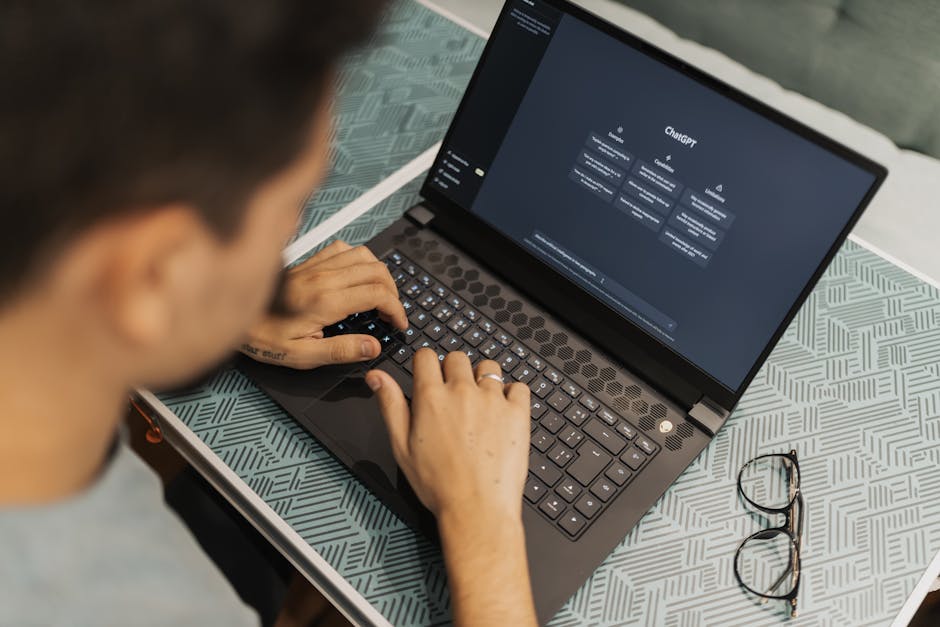
Photo by Matheus Bertelli on Pexels
The screenshot that started this whole experiment
A friend texted me a link to a gate agent's badge number after a flight got rebooked, and I screenshotted it "just in case." Two weeks later I needed it and had no idea where it was. My camera roll sits at a little over 4,300 images, most of them screenshots I took and never looked at again. I scrolled for eleven minutes before giving up and asking her to resend it.
That's the moment I decided to actually test whether the AI search features built into modern photo apps are as good as the marketing suggests. I've written before about building one landing pad for tasks instead of juggling five capture apps, and this felt like the same problem wearing a different hat: I wasn't missing the information, I was missing a way to retrieve it.
So over a few weeks I ran the same kind of test against three different tools, using screenshots and photos I could actually verify I'd find manually if I had to. Here's what worked, what didn't, and where I landed.
What "AI photo search" actually means in 2026
Before testing anything, it's worth being clear about what's happening under the hood, because it changes what you should expect.
Most phone photo apps now run two separate systems:
- On-device visual recognition — the phone scans images locally for objects, scenes, and sometimes text, and builds a searchable index without sending anything to a server.
- Cloud-based semantic search — a broader AI model that understands natural language queries ("the receipt from the hardware store") and can reason about content in ways the on-device index can't.
Some apps blend both. Some only do one. That distinction matters more than any single feature checkbox, because it determines whether search works on a plane with no signal, and whether your screenshots are actually being read by a server somewhere versus staying local.
Round one: Google Photos' natural language search
I typed "gate agent badge number" into Google Photos search. Nothing. I tried "airport screenshot," and it surfaced a boarding pass from a different trip but not the one I wanted.
Where it did shine was with photos, not screenshots — searching "dog at the beach" pulled up the right image instantly, sorted roughly by relevance. That's the pattern I kept seeing across every tool: AI photo search is genuinely strong at describing scenes in real photographs and noticeably weaker at reading dense text inside a screenshot, especially small UI text on a cluttered app screen.
Round two: Apple Photos' on-device text recognition
On an iPhone, Apple's Photos app does something different — it runs on-device text recognition (sometimes called Live Text) across your whole library, which means you can search for literal words that appear in an image, not just described scenes.
This is the one that actually found my badge number. I searched a partial phrase I remembered from the screenshot, and it turned up in about two seconds because the app had already indexed the visible text, not just the general "this looks like an app screenshot" category.
The limitation: it only works well when the text is reasonably legible and horizontal. A screenshot of a chat bubble with a badge number buried mid-sentence, in a smaller font, took two tries with slightly different phrasing before it surfaced.
Round three: asking a general AI assistant to describe what I remembered
Photo by Roseson Studios® on Pexels
Out of curiosity, I tried a different approach entirely — instead of searching my photos, I described the screenshot to an AI chat assistant and asked it to guess what app or context it likely came from, hoping that would narrow my manual search. This is where I'll be honest about a limitation people don't talk about enough: a general-purpose AI assistant that can't see your actual photo library is really just helping you brainstorm search terms. It can't retrieve anything it hasn't been shown. That's an important distinction, because it's easy to assume "AI" means one unified capability when really you're dealing with two different jobs — recognition (what's in this specific image) and reasoning (what would a badge number screenshot typically look like). Only the first one actually finds your file.
The pattern that actually mattered
Here's the honest takeaway after running this more than a dozen times with different screenshots: on-device text recognition beat cloud-based scene search every time the thing I needed was text, and scene search beat text search every time I needed an actual photograph of a place, person, or object.
Say you're trying to find one of these:
- A screenshot of a Wi-Fi password → text search wins, almost always
- A photo of the restaurant you liked in a city you visited once → scene/description search wins
- A screenshot of a group chat mentioning a date → text search wins, but plan on trying two or three phrasings
- A photo of your kid's school project → scene search wins easily, "art project" or similar gets there fast
Most people default to typing what they remember the picture "being about," which is scene-search language, even when the content they actually need is text on screen. Switching your mental model — "am I looking for words or a scene?" — before you type the query saves more time than any app switch does.
A small habit that made search work better going forward
None of this fixes years of backlog instantly, but one change made new screenshots easier to find going forward: renaming or annotating screenshots isn't necessary, but taking two extra seconds to screenshot the *whole* context — the app header, the sender name, the date visible on screen — instead of a tight crop gives the text recognition far more to index. A cropped screenshot with just a number in it is nearly unsearchable. The same screenshot with visible surrounding text becomes searchable in seconds.
FAQ
Does AI photo search work without an internet connection?
On-device text recognition, like Apple's Live Text-based search, generally works offline since the indexing happens locally on the phone. Cloud-based semantic search, like natural language queries in Google Photos, typically needs a connection to run the full AI model, though some basic indexing may already be cached locally depending on your settings.
Is it safe to let an app scan my screenshots, including sensitive ones like IDs or bank info?
This is worth checking deliberately rather than assuming. On-device recognition keeps the analysis local to your phone, which is generally the more private option. Cloud-based search may involve your images being processed on a server, so it's worth reading your specific app's privacy settings and, if you're uneasy about sensitive screenshots, deleting them once you no longer need them rather than relying on search to keep them organized.
Why can't AI just read everything perfectly the way it reads text I type?
Reading text inside an image is a genuinely harder problem than processing typed text, especially with small fonts, low contrast, or text at an angle. Accuracy has improved a lot, but it's still not the same as searching a document, so expect to try a couple of phrasings before giving up on a query.
The boring conclusion I keep arriving at
This is turning into a running theme in everything I test: the flashy, all-knowing "ask AI anything" framing oversells what's actually happening, while the quieter, more specific feature — on-device text recognition indexing every screenshot in the background — is the one that saved me eleven minutes of scrolling. I didn't need a smarter assistant. I needed to know which search to use for which kind of memory. Once I sorted that out, my camera roll stopped feeling like a junk drawer and started acting like the reference library it should have been all along.
Keep reading
- I Replaced Three Hub-Dependent Devices With Matter Ones. Only One Upgrade Actually Mattered
- I Replaced My To-Do List With Time Blocks. It Only Worked After I Broke One Rule.
- I Stopped Scrolling Through My Camera Roll and Started Asking AI to Find the Photo
#aitools #productivity #photoorganization #smartphones
Comments
Post a Comment