
Photo by https://kaboompics.com/ on Pexels
The pitch sounded better than the reality
I've written before about syncing my phone and laptop's clipboard, and that fix quietly became one of my favorite productivity tweaks. So when I kept seeing apps that promise to turn your phone into a second monitor for your laptop, I figured I'd found the next one. Extra screen real estate without buying an actual monitor? Sign me up.
It did not become my favorite productivity tweak. Let me tell you what actually happened, because the honest version is more useful than the marketing version.
The idea is simple enough: you install an app on your laptop and a companion app on your phone, connect over Wi-Fi or USB, and your phone's screen becomes an extension of your desktop. Drag a window over, and it lands on your phone. Apps like spacedesk, Duet Display, and Luna Display all do some version of this, and if you're on a Mac and an iPhone, Sidecar does it natively with zero setup.
I tried it for two weeks expecting to use it for actual work — parking a document or a chat window on the side while I focused on the main screen. That part fell apart fast.
Why it doesn't work as a real second screen
Three problems showed up almost immediately, and they weren't unique to one app — I hit some version of all three across every tool I tested.
- The screen is small and you hold it at a weird angle. A phone propped next to a laptop is not ergonomically close to a monitor. You end up glancing down and to the side, which is exactly the kind of neck position that gets uncomfortable after an hour.
- Latency is noticeable the second you try to type or scroll in the mirrored window. It's fine for something static. It's annoying for anything interactive.
- Battery drain is real. Your phone is now running a screen-sharing app continuously, and unless it's plugged in, you're watching the battery percentage drop while you work.
So if you're picturing this as a genuine multitasking upgrade — email on the phone screen, browser on the laptop — I'd steer you away from it. It's a worse experience than just alt-tabbing.
The one use case that actually stuck
Here's where I landed, and it's narrower than what these apps advertise: using the phone screen as a temporary reference panel, not a working screen.
Say you're on a video call and someone shares a spreadsheet you need to cross-check against your own numbers. Instead of shrinking your call window or hunting for a second monitor, you park the spreadsheet on your phone, propped up next to your keyboard, and glance at it the way you'd glance at a printed sheet. You're not typing into it. You're not scrolling it constantly. You're just looking.
That's the pattern that actually held up for me: any time the second screen is read-only reference material — a recipe, a set of instructions, a chart, a second person's screen share — the awkward angle and the lag stop mattering, because you're not interacting with it moment to moment. It becomes closer to a propped-up notebook than a functioning display.
I also found it genuinely useful once, unplanned, when my laptop's HDMI port stopped cooperating right before a screen share and I needed to quickly reference a doc without switching away from the call window. Not a daily habit, but worth having installed for that kind of moment.
What I'd actually recommend instead
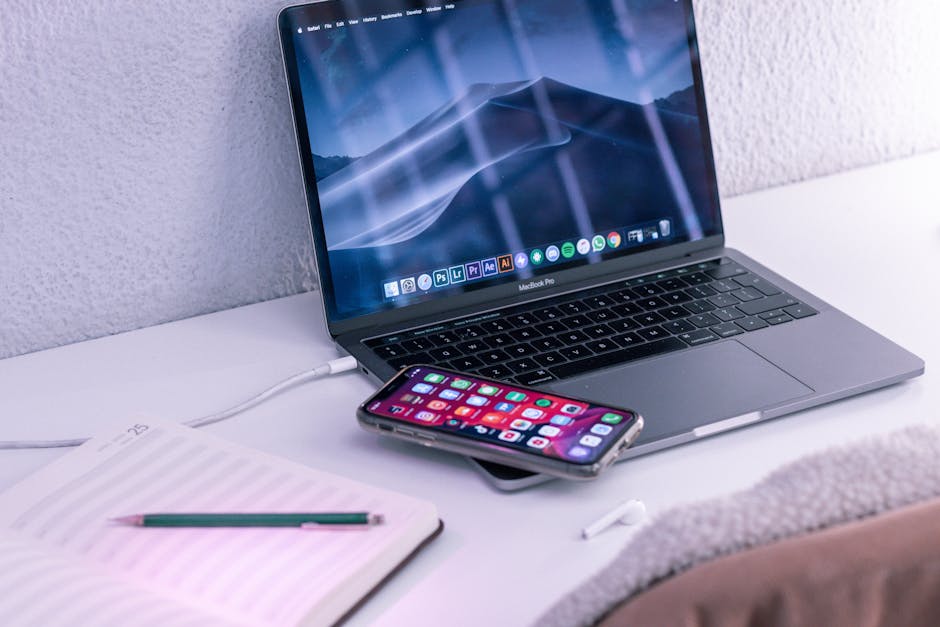
Photo by Callum Hilton on Pexels
If your goal is more usable screen space for real work, a cheap portable monitor is a better use of money than any phone-as-monitor app. You can find lightweight USB-C portable displays that plug directly into a laptop and just work, without pairing apps, latency, or battery anxiety. That's the boring answer, and it's the right one — this is the same lesson I keep running into with these gadget-adjacent fixes: the well-integrated, purpose-built tool usually beats the clever workaround.
Where the phone-as-monitor apps earn their keep is specifically in situations where carrying a portable monitor isn't practical — working from a coffee shop, a hotel room, someone else's desk — and you just need a temporary reference panel for twenty minutes. For that narrow case, it's worth having one of these apps sitting on your phone, uninstalled the rest of the time.
A quick note on setup, if you try it
If you do want to test this out, a few things will save you frustration:
- Use a USB connection instead of Wi-Fi if the app supports it. It cuts the lag noticeably and stops draining your phone's battery.
- Close other apps competing for bandwidth on your laptop before you connect — video calls and large downloads make the lag worse.
- Don't bother with touch input on the phone screen unless the app specifically markets that as a strength. Most of these are built for display, not interaction.
FAQ
Does this work between an Android phone and a Windows laptop, or only Apple devices?
Apple's Sidecar is Mac-and-iPad only, but third-party apps like spacedesk work across Windows, Android, and other combinations. The cross-platform apps tend to have a bit more lag than Apple's native option, so temper your expectations a notch further if you're not in an all-Apple setup.
Will this drain my phone's battery fast?
Yes, noticeably, especially over Wi-Fi. If you're using it for more than a few minutes, plug your phone in. Treat it like running a video call — because functionally, that's close to what it's doing.
Is there a free option, or do I need to pay for one of these apps?
Several have a free tier that's fine for testing whether you even like the experience — spacedesk's free version is a reasonable starting point. I'd try free before paying for anything, since for most people this ends up being an occasional-use tool rather than a daily one.
The takeaway
Phone-as-monitor apps aren't the productivity upgrade their marketing suggests, and I'd stop short of calling this one a habit-former the way clipboard sync or a good task landing pad has been. But dismissing it entirely would miss the one narrow spot where it's genuinely handy: turning your phone into a passive reference panel when you don't have a real second screen around. Install it, keep your expectations low, and let it sit there for the one afternoon a month you actually need it.
Keep reading
- I Turned On Two-Factor Authentication Everywhere. Here's the One Setup Step Almost Everyone Skips
- I Synced My Phone and Laptop's Clipboard, and It Quietly Became My Favorite Productivity Fix
- Your Laptop Isn't Slow. You Have 60 Tabs Open — Here's What Actually Fixed It
#productivity #phonetips #laptoptips #secondmonitor #techtools
Comments
Post a Comment