You Don't Need to Pick Up Your Phone to Answer a Text Anymore (Here's the Setup That Actually Works)
I used to keep my phone face-up next to my laptop all day, just so I wouldn't miss a text. That habit alone probably cost me twenty pick-ups a day — not because I needed to, but because glancing at a lit screen next to me was easier than ignoring it. Somewhere around the time I turned off most of my notifications (I wrote about that experiment a while back), I finally sat down and fixed the actual problem: my phone and my laptop weren't talking to each other for the one thing that mattered most, which is texts and calls.
Turns out the fix isn't a new app. It's tools that already ship on your devices, set up correctly. That's the part nobody tells you — the built-in stuff works better than the third-party stuff, once you actually configure it.
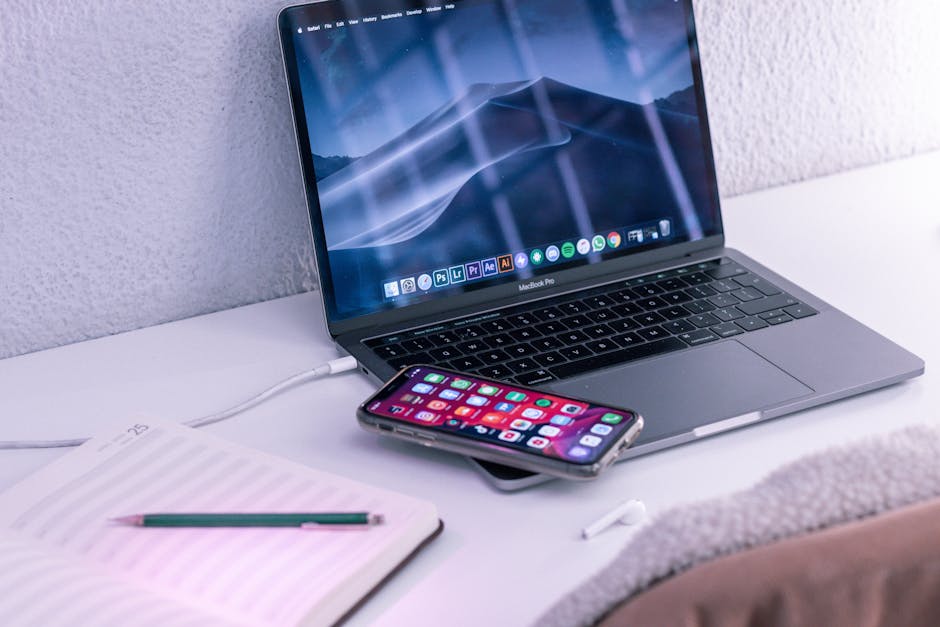
Photo by Callum Hilton on Pexels
The problem isn't your phone, it's the handoff
Here's the thing that took me embarrassingly long to notice: every time I reached for my phone mid-task to answer a text, I paid a tax that had nothing to do with the text itself. I'd unlock it, reply, and then — because the phone was already in my hand — check something else. A notification. An app. Suddenly five minutes are gone and I don't remember opening half of what I looked at.
The actual goal isn't "never touch your phone." It's closing the loop on calls and texts without that phone becoming a launchpad for a five-minute detour. That means the reply needs to happen on the laptop, where the only thing in front of you is the thing you're already doing.
What actually works, by platform
I've tested a handful of these over the past year, on both an Android phone paired with a Windows laptop and an iPhone paired with a Mac. The gap between "technically works" and "actually good" is bigger than you'd expect.
Windows + Android — Phone Link. This is built into Windows now, not a download you have to hunt for. Once it's paired, texts show up in a proper window on your desktop, and you can make and take calls with your laptop mic and speakers. The part that sold me: it also mirrors notifications from individual apps if you want, so you can choose exactly which apps are allowed to interrupt you on the big screen instead of getting the whole firehose.
Mac + iPhone — Continuity. If you're both-Apple, this is honestly the smoothest version of the whole idea, because it was built as one system from day one rather than bolted together after the fact. Texts, calls, and even copying something on your phone and pasting it on your Mac (Universal Clipboard) all just work once you're signed into the same Apple ID on both devices, on the same Wi-Fi network.
Cross-platform or Linux — KDE Connect. If you're mixing an Android phone with a Linux laptop, or you just want something that isn't tied to a single vendor, KDE Connect does texts, notifications, and file transfer, and it's free and open source. It's a little more DIY to set up than the first two, but it's the most flexible option if your setup doesn't fit neatly into an Apple or Microsoft box.
I'll say the honest thing here: I tried a couple of third-party "phone mirroring" apps before landing on this, expecting more control. What I got instead was more battery drain and an extra thing to keep logged in. The built-in options won because they're already running in the background anyway — you're not asking your phone to do more, you're just telling it to also tell your laptop.
Setting it up without the fifteen-minute rabbit hole
Say you're on Windows with an Android phone. The real setup is maybe five minutes, but the first attempt often fails because of one missed step, so here's the order that actually works:
- Open Phone Link on Windows and the companion "Link to Windows" app on your phone (it usually comes preinstalled on Samsung and newer Android phones; otherwise it's a quick install from the Play Store).
- Make sure both devices are on the same Wi-Fi network for the initial pairing — Bluetooth alone can time out during setup.
- Scan the QR code, then go into your phone's notification access settings and actually grant Phone Link permission. This is the step people skip, and it's the one that silently breaks texts and calls from showing up.
- Once paired, go into Phone Link's settings and turn off notification mirroring for anything that isn't calls, texts, or maybe one messaging app. This is where you decide what's allowed to follow you to the laptop — don't just accept the default of "everything."
For Mac and iPhone, it's simpler: same Apple ID, same Wi-Fi, Bluetooth on for both, and enable "Calls from iPhone" under FaceTime settings on the Mac. If texts specifically aren't showing up, check Messages settings on the iPhone under "Text Message Forwarding" — that toggle is off by default and is the single most common reason this doesn't work on the first try.
The setting that matters more than the app

Photo by Pixabay on Pexels
Whatever tool you land on, the one setting worth spending real time on is which notifications actually cross over. The instinct is to mirror everything so you "don't miss anything," but that recreates the exact problem you were trying to solve — now your laptop has the same firehose your phone used to have, just on a bigger screen.
What's worked for me is treating the laptop as the calls-and-texts channel, full stop. Everything else — social apps, games, shopping notifications — stays on the phone, where it's easy to ignore because the phone itself is now face-down in a drawer most of the day. The split does the work that willpower never did.
FAQ
Does this drain my phone's battery faster?
Not noticeably, in my experience. These tools rely on the same background connections (Bluetooth or local Wi-Fi) your phone is already using for other things, rather than running a heavy new service. If you do notice a drain, check that you don't have an older third-party app running alongside it — that's usually the actual culprit, not the built-in tool itself.
What happens if I'm away from Wi-Fi or Bluetooth range?
The connection drops and your laptop just stops showing new messages until you're back in range — nothing gets lost or duplicated. Your phone keeps working exactly as normal the whole time; it's purely an extra display, not a replacement.
Can I reply to texts without unlocking my phone at all?
Yes, and that's really the point. Once paired, you type and send directly from the laptop app. Your phone can stay locked, face-down, wherever you left it — the reply goes out from your number without you ever touching the device.
The boring fix wins again
This is the same lesson I keep landing on with this stuff: the flashy new app rarely beats the tool that's already sitting there, unconfigured, on the device you paid for. Phone Link, Continuity, and KDE Connect aren't new — they've been quietly available for a while. The only thing that changed is that I finally spent the ten minutes setting one up properly instead of just picking my phone up one more time. If you're still keeping your phone face-up next to your keyboard out of habit, that's probably the fastest fix on this list.
Comments
Post a Comment