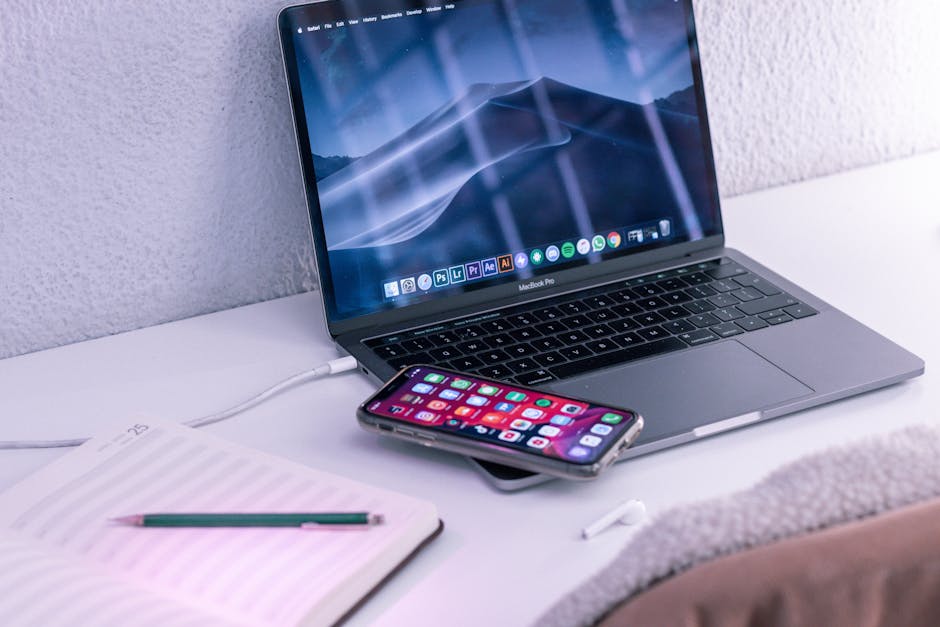
Photo by Callum Hilton on Pexels
The "text it to myself" habit is costing you more than you think
I used to email myself photos. Then I switched to texting them to myself, which felt like an upgrade until I realized I was just compressing the same bad habit into a different app. Either way, I was uploading a file to a server somewhere, waiting for it to process, then downloading it again on another device — for a file that was sitting eighteen inches away the whole time.
If you've ever watched a "sending..." progress bar crawl across your screen for a photo that's physically closer to your laptop than your coffee cup, you already know the problem. Cloud round-trips are the default because they're the path of least resistance, not because they're fast. And once you set up an actual local transfer method, you stop reaching for email-to-self entirely. It just stops occurring to you as an option.
Why the obvious methods are worse than they look
Three habits dominate how most people move files between a phone and a laptop, and all three have a real cost:
- Cable transfer. Works, but you need the right cable, the right port, and usually a driver popup you have to click through. Fine for a big one-time dump of photos, painful for "I just need this one screenshot right now."
- Cloud upload/download (Google Photos, iCloud, Dropbox, emailing yourself). Reliable, but every file makes two trips — up to a server, then back down — and it depends on your internet speed even when both devices are in the same room.
- Messaging apps as a file bridge. Convenient, but most chat apps recompress images to save bandwidth. Send a screenshot through WhatsApp or a group chat and you'll often get a slightly blurrier, smaller version back. Fine for memes, bad for anything you actually need at full resolution.
None of these are wrong, exactly. They're just solving the problem the slow way by default.
What actually works: local network transfer
The fix is to send the file directly, phone to laptop, over the same Wi-Fi network — no server in between. This isn't a new idea; Apple users have had AirDrop for over a decade. The gap has always been that Android-to-Windows and cross-platform setups didn't have an equivalent that just worked. That gap has mostly closed now, and it's worth setting up once.
LocalSend is the one I keep coming back to. It's free, open-source, and works across Android, iOS, Windows, macOS, and Linux — which matters if your phone and laptop aren't from the same company. Install it on both devices, make sure they're on the same network, and one shows up in the other's device list. Tap to send. No account, no upload step, no size limit worth worrying about.
Quick Share (Android) and Nearby Share cover the Android-to-Android and increasingly Android-to-Windows case, since Samsung and Google have been folding Windows support into it. If you're already in that ecosystem, it's one less app to install.
KDE Connect is the deeper option if you're on Linux or you want more than file transfer — it also does notification mirroring, remote media control, and letting your laptop use your phone as a trackpad. More setup, more power.
Snapdrop is the zero-install fallback. It's just a website — open it in the browser on both devices, and it works like a local AirDrop with no app to download. Genuinely useful when you're on someone else's laptop and can't install anything.
A realistic example

Photo by https://kaboompics.com/ on Pexels
Say you're at a coffee shop and you just took a photo of a whiteboard sketch you need to reference on your laptop in the next five minutes. With cloud upload, you're waiting on your photo app to sync, hoping the Wi-Fi cooperates, then waiting again for it to appear on the laptop. With LocalSend, you open the app on your phone, tap the photo, tap your laptop's name in the list, and it's in your downloads folder in under two seconds — because it never left the building, let alone the room.
The gap gets bigger with bigger files. A short screen recording or a batch of a dozen photos might take a minute or two to upload to the cloud and another minute to pull back down. Over a local connection, that same batch moves at whatever speed your Wi-Fi actually supports, which on most home networks is fast enough that you won't watch a progress bar at all.
The catch: you need to be on the same network
This is the one real limitation, and it's worth being honest about it. Local transfer tools need both devices on the same Wi-Fi — or, in some cases, connected directly to each other over Wi-Fi Direct or Bluetooth, which a few of these apps fall back to automatically when there's no shared network. If your phone is on cellular data and your laptop is on office Wi-Fi, none of this works, and cloud sync genuinely is the better tool for that job.
I've written before about turning my phone into a second monitor for my laptop, and this is the same underlying idea in a different shape: your phone and laptop are usually closer to each other, network-wise, than either of them is to a data center. Most of these tools just take advantage of that instead of ignoring it.
My honest take: cloud sync is still the right call for anything you want backed up automatically, like your full camera roll. But for the one-off "get this file from A to B right now" moment — which is most of what actually interrupts your day — local transfer wins every time, and it's not close.
FAQ
Is local file transfer actually more private than using the cloud?
Generally yes, since the file never leaves your local network or touches a third-party server. That said, these tools aren't encrypted end-to-end in every case the way a dedicated secure-sharing app would be, so I wouldn't use them for anything genuinely sensitive like financial documents. For everyday photos, screenshots, and PDFs, it's a meaningful privacy upgrade over routing through someone else's server by default.
What if my phone and laptop are never on the same Wi-Fi network?
Then local transfer tools mostly won't help you, and that's fine — cloud sync (Google Photos, iCloud, OneDrive) is built for exactly that scenario and does it well. The two approaches aren't competitors; use local transfer for same-room moments and cloud sync for everything that needs to follow you across networks and devices automatically.
Do I need to install something on both devices every time?
No — install once and it stays. LocalSend, Quick Share, and KDE Connect all run quietly in the background or launch quickly when needed, similar to how AirDrop just lives on Apple devices without you thinking about it. The only exception is Snapdrop, which is browser-based by design, so you'd revisit the site each time — useful specifically because it needs no install at all.
The boring fix beats the flashy one, again
This is basically the same lesson I keep landing on with this blog: the tool that quietly removes a step you didn't notice you were taking usually beats the one with the flashier feature list. Local file transfer isn't exciting. It's not going to show up in anyone's "AI-powered" pitch deck. But it deletes an upload-then-download round trip you've probably done a hundred times this year without questioning it, and once it's set up, you'll wonder why you ever texted yourself a screenshot in the first place.
Keep reading
- I Turned My Phone Into a Second Monitor for My Laptop. It's Not the Killer Feature I Expected
- I Synced My Phone and Laptop's Clipboard, and It Quietly Became My Favorite Productivity Fix
- Smart Water Leak Sensors Are the Least Exciting Smart Home Buy I've Made, and the Only One I'd Insist On
#phonetips #laptoptips #filetransfer #productivity #techtools
Comments
Post a Comment